Expo Router는 파일 기반 라우팅 시스템을 통해
React Navigation을 더 간단하게 설정할 수 있도록 도와줍니다.
특히 탭 네비게이션(Tab Navigation)은 매우 직관적으로 구성할 수 있습니다.
아래는 기본적인 개념과 설정 방법을 간단하게 정리한 내용입니다.
1. 기본 개념
파일 기반 라우팅(File-Based Routing)
-Expo Router는 파일 이름과 폴더 구조를 기반으로 자동으로 라우트를 생성합니다.
-app/(tabs) 폴더 내에 파일을 추가하면 탭 네비게이션에서 각 탭 화면으로 동작합니다.
탭 네비게이션(Tab Navigation)
-Expo Router는 React Navigation의 탭 네비게이션을 활용하며, 탭 구성은 _layout.tsx에서 설정합니다.
**Tabs.Screen**을 사용하여 각 탭과 해당 화면을 정의합니다.
자동 매핑
app/(tabs)/index.tsx → / (기본 경로, Home 탭)
app/(tabs)/explore.tsx → /explore (Explore 탭)
2. 기본 디렉토리 구조
app/
├── (tabs)/
│ ├── _layout.tsx // 탭 네비게이션 설정
│ ├── index.tsx // Home 탭 화면
│ └── explore.tsx // Explore 탭 화면
├── _layout.tsx // 앱 전체 공통 레이아웃
└── +not-found.tsx // 404 에러 페이지
3. 주요 파일 설명
1) _layout.tsx
Tabs를 이용하여 탭 네비게이션을 설정하는 파일입니다.
각 탭은 Tabs.Screen으로 정의하며, 이름과 아이콘을 설정할 수 있습니다.
import React from 'react';
import { Tabs } from 'expo-router';
export default function TabsLayout() {
return (
<Tabs>
<Tabs.Screen
name="index" // Home 화면 (tabs/index.tsx와 연결)
options={{
title: 'Home',
tabBarIcon: ({ color }) => <Icon name="home" size={24} color={color} />,
}}
/>
<Tabs.Screen
name="explore" // Explore 화면 (tabs/explore.tsx와 연결)
options={{
title: 'Explore',
tabBarIcon: ({ color }) => <Icon name="search" size={24} color={color} />,
}}
/>
</Tabs>
);
}
2) index.tsx
Home 탭에 표시될 화면을 정의합니다.
import React from 'react';
import { View, Text, StyleSheet } from 'react-native';
export default function HomeScreen() {
return (
<View style={styles.container}>
<Text style={styles.title}>Welcome to the Home Tab!</Text>
</View>
);
}
const styles = StyleSheet.create({
container: {
flex: 1,
justifyContent: 'center',
alignItems: 'center',
backgroundColor: '#fff',
},
title: {
fontSize: 20,
fontWeight: 'bold',
},
});
3) explore.tsx
Explore 탭에 표시될 화면을 정의합니다.
import React from 'react';
import { View, Text, StyleSheet } from 'react-native';
export default function ExploreScreen() {
return (
<View style={styles.container}>
<Text style={styles.title}>Welcome to the Explore Tab!</Text>
</View>
);
}
const styles = StyleSheet.create({
container: {
flex: 1,
justifyContent: 'center',
alignItems: 'center',
backgroundColor: '#fff',
},
title: {
fontSize: 20,
fontWeight: 'bold',
},
});
4. 동작 원리
_layout.tsx에서 Tabs를 설정하여 네비게이션 구조를 정의합니다.
Tabs.Screen을 사용하여 경로와 화면을 연결합니다.
예: name="index" → (tabs)/index.tsx로 연결.
**index.tsx와 explore.tsx**는 각각 /와 /explore 경로의 화면을 렌더링합니다.
앱이 실행되면 Expo Router가 이 구조를 기반으로 자동으로 라우트를 매핑합니다.
5. 결과
app/(tabs)/index.tsx는 Home 탭으로 동작합니다.
app/(tabs)/explore.tsx는 Explore 탭으로 동작합니다.
_layout.tsx는 탭의 공통 레이아웃을 관리합니다.
하단 탭 네비게이션이 설정된 구조를 통해 사용자가 각 화면으로 쉽게 이동할 수 있습니다.
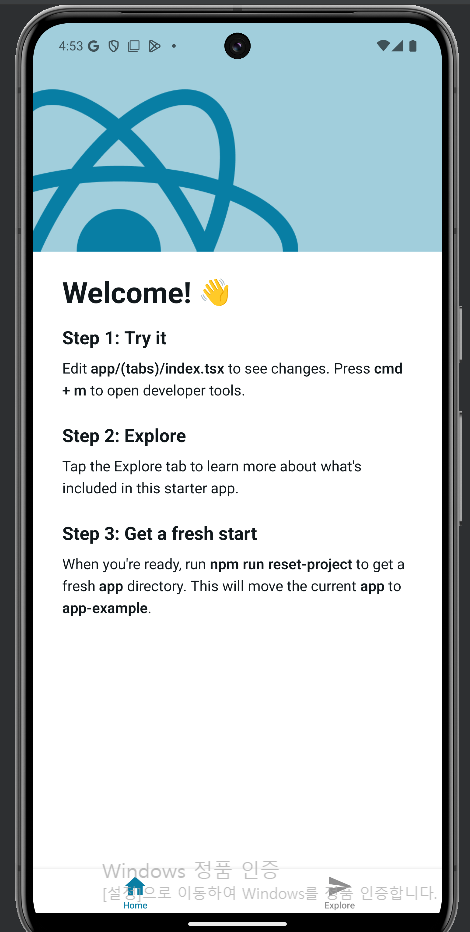
이게 처음 앱 진입점인 _layout.tsx 입니다

이게 아래에 Explore 를 누르면 나오는 화면입니다
'RN Template' 카테고리의 다른 글
| Tabs.Navigator와 Tabs.Screen 차이 (0) | 2025.01.09 |
|---|---|
| React Native와 Gluestack UI를 활용한 UI 설계 튜토리얼 (0) | 2025.01.03 |
| Expo로 React Native 앱 시작하기: 간단 가이드 (0) | 2025.01.03 |